
How to Use Canva AI: 7 Easy Steps for Beginners (Complete Guide)
Canva AI is one of the most beginner-friendly design tools available — and most of its AI features are completely free. This step-by-step guide shows you exactly how to use Canva AI to create graphics, social media posts, presentations, and more — even with zero design experience.
Learning how to use Canva AI is one of the best decisions a beginner can make — it saves hours of design work every week and produces professional results from day one.
Canva has grown from a simple design tool into a full AI-powered creative platform. Whether you need a social media graphic, a blog featured image, a presentation, or a YouTube thumbnail, Canva AI can help you create it in minutes — starting from a text description, a template, or your own uploaded image.If you’re wondering how to use Canva AI for beginners — this complete how to use Canva AI guide walks you through the process step by step — from creating your free account to using the key AI features that save the most time. No design background is needed. If you are not sure Canva AI is the right tool for your goal, try our free AI Tool Finder Quiz for a personalized recommendation.
🤖 What Is Canva AI — And What Can It Do?
Knowing how to use Canva AI gives beginners a significant advantage — professional designs that used to take hours can now be created in minutes.
Canva AI refers to the collection of artificial intelligence features built into the Canva platform. These features help you design faster, generate images from text, remove backgrounds, write copy, and resize designs for different platforms — all inside one free tool.
📋 How to Use Canva AI — Step by Step

Go to canva.com and sign up with your Google account or email — it takes under 60 seconds. The free plan gives you access to 250,000+ templates, AI tools, and unlimited design storage. No credit card is required to start.
💡 Sign up with Google for the fastest setup — one click and you are in.On the Canva homepage, click “Create a design” and then select “Magic Design.” Type a description of what you want to create — for example: “Instagram post about AI tools for beginners, dark blue and gold color scheme.” Canva AI will instantly generate several complete design options for you to choose from and edit.
💡 Be specific in your description — include the platform, colors, topic, and tone for better results.If you prefer to start from a template, search for your design type in the top search bar — “Instagram post,” “YouTube thumbnail,” “presentation,” or “Pinterest pin.” Browse the free templates (look for the ones without a crown icon — those are free), click one you like, and it opens in the editor ready to customize.
💡 Filter by “Free” in the left panel to only show templates available on the free plan.Once your design is open, customize it using Canva’s built-in AI tools. Click any text to edit it — or use Magic Write (the pencil icon) to let AI suggest caption text. Click any image in the design to replace it with an AI-generated image or a photo from the free library. Adjust colors, fonts, and layout to match your brand.
💡 To generate a custom AI image: click on an image element → “Generate Image” → type your description → select the best result.If you need the same design for multiple platforms, use Magic Resize — click “Resize” in the top toolbar, select additional formats like Pinterest Pin or LinkedIn Post, and Canva resizes the design automatically. This saves significant time compared to recreating the design from scratch for each platform.
💡 Magic Resize is available on the Pro plan ($15/month). On the free plan, manually adjust canvas dimensions instead.Click the “Share” button in the top right corner, then “Download.” Choose PNG for social media images, JPG for blog graphics, or PDF for presentations and documents. Your design downloads instantly and is ready to use. All designs are saved automatically in your Canva account.
💡 PNG format gives the best quality for social media graphics. Use JPG for smaller file sizes when needed.💡 What Can You Create With Canva AI?
Canva AI is useful for a wide range of beginner content creation tasks:
- Social media graphics — Instagram posts, Stories, Facebook covers, LinkedIn banners
- YouTube thumbnails — Eye-catching thumbnails that follow platform best practices
- Pinterest pins — Vertical pins optimized for the Pinterest format
- Blog featured images — Header images for WordPress blogs and articles
- eBook covers — Professional-looking PDF and digital product covers
- Presentations — Slides for client pitches, courses, and tutorials
- Digital products — Printables, planners, and templates to sell on Etsy

⚡ Beginner Tips for Using Canva AI Better
These practical tips will help you how to use Canva AI more effectively from your very first design session.
- Start with a template, not a blank canvas — Templates save time and teach you good design principles through example. Customize from there rather than building from zero
- Use specific descriptions for Magic Design — Include platform, colors, style, and topic. “Dark navy Instagram post about productivity tips, minimalist style, gold accents” gives much better results than “productivity post”
- Save your brand colors as custom colors — Add your brand hex codes to the custom color panel so you can apply them to any design consistently without looking them up each time
- Batch create designs in one session — Design a week of social media graphics at once rather than one per day. Open multiple design tabs and work through them in sequence
- Use the mobile app for background removal — The Background Remover is free on the Canva mobile app — useful for product images and profile photos without needing a Pro plan
🎯 Final Thoughts — Start With One Design
Learning how to use Canva AI for beginners takes less time than most beginners expect — and once you know how to use Canva AI effectively, the tool becomes second nature. The best approach is to open Canva, pick a template close to what you need, and make your first design today — even if it is not perfect. The tool becomes more intuitive with each design you create.
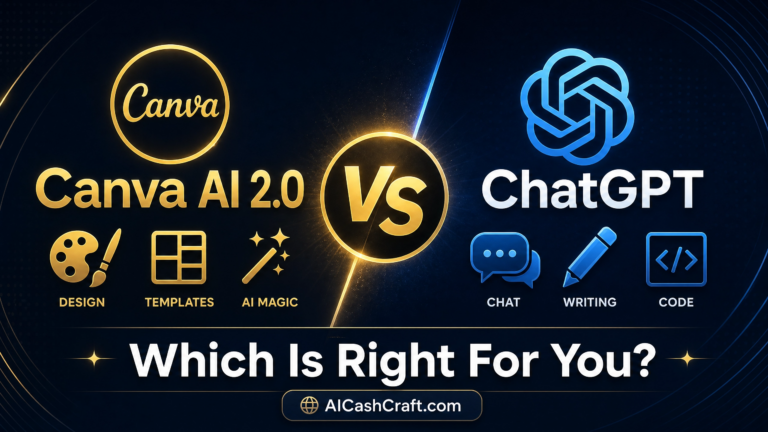
For social media content, Canva AI pairs well with ChatGPT for captions and copy. See our guide on AI Tools for Social Media Managers for a complete workflow. You can also compare Canva AI with other tools in our Canva AI vs ChatGPT guide, or explore all image tools in our Best AI Image Tools guide.
Learning how to use Canva AI for beginners can save time and help you create professional designs without advanced design skills.📚 Related Guides
❓ Frequently Asked Questions
Yes — Canva’s free plan includes 250,000+ templates, the Magic Design AI feature, AI image generation (limited uses per month), and basic editing tools. The Pro plan ($15/month) adds unlimited Magic Resize, unlimited AI uses, and more premium features. Most beginners can start and create useful designs entirely on the free plan.
Magic Design generates a complete, ready-to-edit design from a text description. Go to Canva → “Create a design” → “Magic Design” → type your description including platform, colors, topic, and style → Canva generates several design options instantly. You can then choose the one you like and customize it in the editor. The more specific your description, the more relevant the results.
Yes — designs created in Canva can generally be used for commercial purposes, including social media content, client work, digital products, and blog graphics. Always review Canva’s current content license terms for specific use cases, particularly for AI-generated images and premium template elements, as terms can update over time.
Canva AI is primarily a visual design tool — it creates graphics, images, and visual layouts. ChatGPT is primarily a text tool — it writes captions, blog posts, and copy. They work well together: use ChatGPT to write the text content, then use Canva AI to design the visual that accompanies it. See our Canva AI vs ChatGPT guide for a full comparison.
Get beginner-friendly AI tips, tool guides, and simple income ideas from AICashCraft.
Top 10 Free AI Tools for Beginners
Download our free 13-page PDF guide covering the best free AI tools. No sign-up needed.
⬇️ Download Free PDF Guide