How to Use Leonardo AI for Beginners — Free AI Image Generator Guide
How to use Leonardo AI for beginners — this free step-by-step guide covers everything you need to know. Leonardo AI offers 150 free credits every day with no credit card required. Learn exactly how to sign up, generate your first image, write better prompts, choose the right model, and start creating professional-quality visuals completely free.
If you want to know how to use Leonardo AI for beginners, you are in the right place. Leonardo AI is the most beginner-friendly free AI image generator available right now — and one of the few that does not require a credit card to get started. You sign up, get 150 free credits every day, and start generating high-quality images in under 2 minutes. Whether you want to create blog images, YouTube thumbnails, social media graphics, digital art, or product mockups — Leonardo AI can do it all for free.
This guide is written for complete beginners — no design experience or technical knowledge required. By the end, you will know exactly how to use Leonardo AI, write prompts that produce great results, choose the right model for each image type, and explore practical ways to earn money using your free daily credits. For a full comparison of the best free AI image tools, see our AI Image Tools for Beginners directory →
🎨 How to Use Leonardo AI for Beginners — What It Is and Why It Works
Before learning how to use Leonardo AI for beginners step by step, it helps to understand what the platform actually does. Leonardo AI is a web-based AI image generator that creates photorealistic images, digital art, illustrations, and design assets from simple text descriptions. You type what you want to see — called a “prompt” — and Leonardo AI generates up to 4 high-quality images in seconds. No design skills, no software downloads, and no technical knowledge required.
What makes Leonardo AI stand out from other free AI image tools is the combination of daily free credits, multiple AI models, and a genuinely beginner-friendly interface. Most competing tools either require a paid subscription from the start or offer very limited free access. Leonardo AI gives you enough free credits to run a real content workflow — blog images, social media graphics, YouTube thumbnails — without spending anything.
Leonardo AI was acquired by Canva in 2024, which has accelerated its development. It now includes video generation, image-to-image transformation, inpainting, and motion tools alongside its core image generation — making it one of the most comprehensive free AI creative platforms available to beginners today.
💳 What Does the Leonardo AI Free Plan Include?
Before signing up, it helps to understand exactly what you get for free — and what the limits are. Here is a complete breakdown of the Leonardo AI free plan:
| Feature | Free Plan | Paid Plans |
|---|---|---|
| Daily Credits | 150 credits — resets daily | 8,500 – 60,000 per month |
| Credits Per Image | 4–6 credits per image | Same rate |
| AI Models | All models available | Same + priority access |
| Image Quality | High quality output | Alchemy Refiner available |
| Image-to-Image | ✅ Included free | ✅ Included |
| Personal Gallery | ✅ Unlimited history | More collection folders |
| Credit Card | Not required | Required for paid plans |
| Paid Plans Start | — | From $12/month (Apprentice) |
📝 How to Use Leonardo AI for Beginners — Signup Step by Step
The first step in learning how to use Leonardo AI for beginners is creating your free account. It takes under 2 minutes and requires no credit card. Here are the exact steps:
Visit leonardo.ai and click the “Launch App” button in the top right corner. This takes you to the signup page.
Click “Sign Up” and choose your signup method — Google account, Microsoft account, or email and password. Google signup is the fastest option. No credit card is asked at any point.
Leonardo AI will ask a few quick questions about how you plan to use the platform. Select options like “Personal Projects” or “Content Creation” as a beginner. This helps the platform recommend the right starting models and tools for your use case.
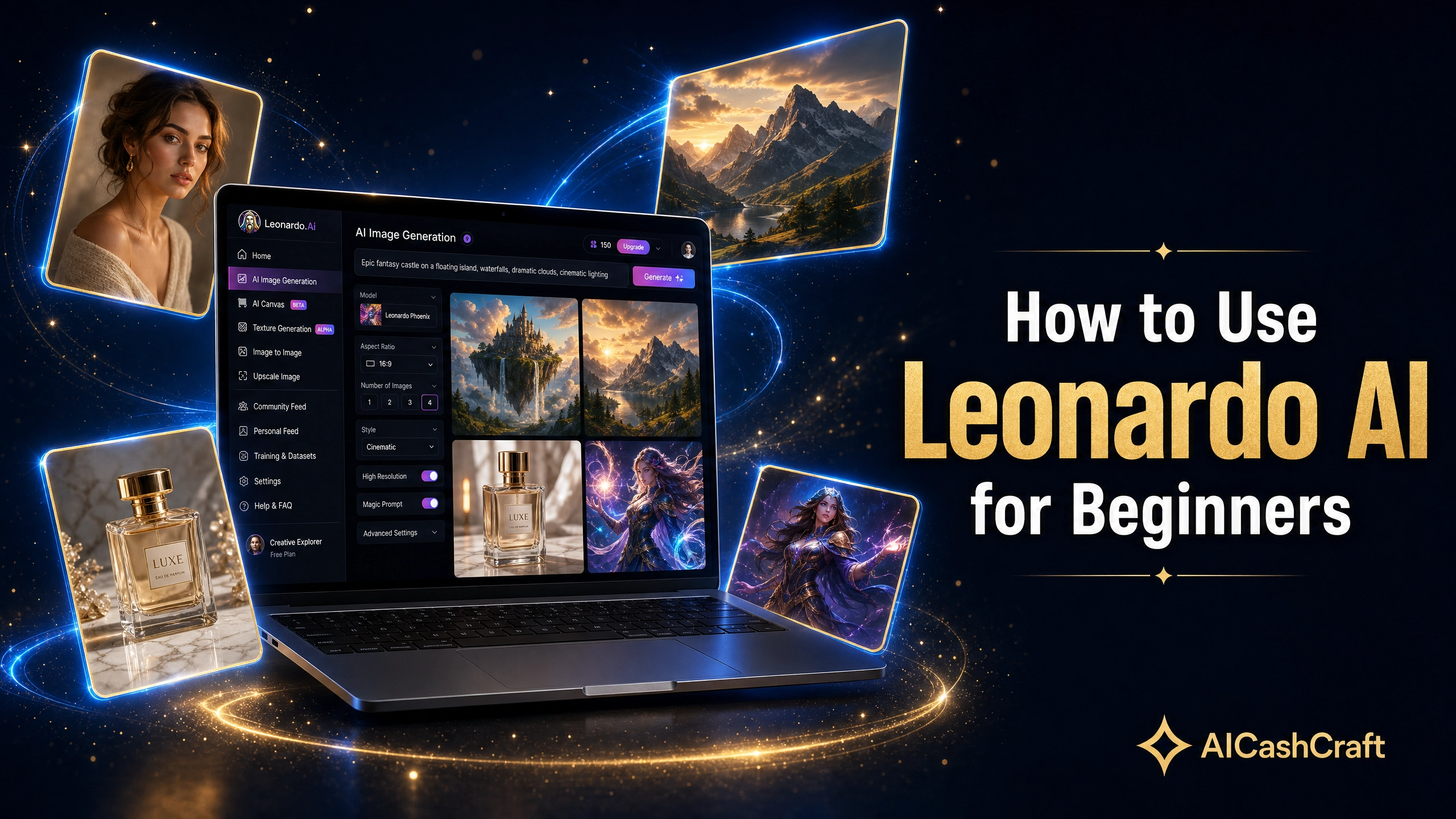
You will land on your main dashboard. Click “Image Generation” in the left sidebar — this is where you generate all your images. Check the credit counter in the top right corner — your 150 free daily credits are automatically loaded and ready to use.
💡 Bookmark the dashboard URL after signing in — it saves you time on future visits and takes you directly to the image generation interface.🖼️ How to Use Leonardo AI for Beginners — Generate Your First Image
Now that your account is ready, here is how to use Leonardo AI for beginners to generate your first image. The complete process from a blank screen to a downloaded image takes less than 60 seconds:
This opens the main generation workspace — a prompt text box at the top, model selector below it, and generation settings on the right panel. Everything you need is visible on one screen.
Click the large text box and type a description of the image you want. For your very first image, try this exact prompt to see what Leonardo AI can do: “a sleek silver laptop on a dark navy desk, soft golden hour lighting, minimalist professional photography style, clean background”
On the right settings panel, find “Number of Images” and set it to 4. This generates four variations of your prompt at once using approximately 16–24 total credits — giving you multiple options to compare and choose the best result.
Click the gold “Generate” button. Leonardo AI will process your prompt and display 4 image results within 20 seconds. Click any image to view it at full size — you will be impressed by the quality even on your very first attempt.
Hover over any generated image and click the download icon to save it to your computer as a PNG file. All your generated images are automatically saved to your personal gallery — accessible anytime from the “Personal Feed” section in the left sidebar.
💡 Right-click any image and choose “Open image in new tab” to view the full resolution before downloading — this helps you spot any quality issues before committing to a download.✍️ How to Use Leonardo AI for Beginners — Writing Better Prompts
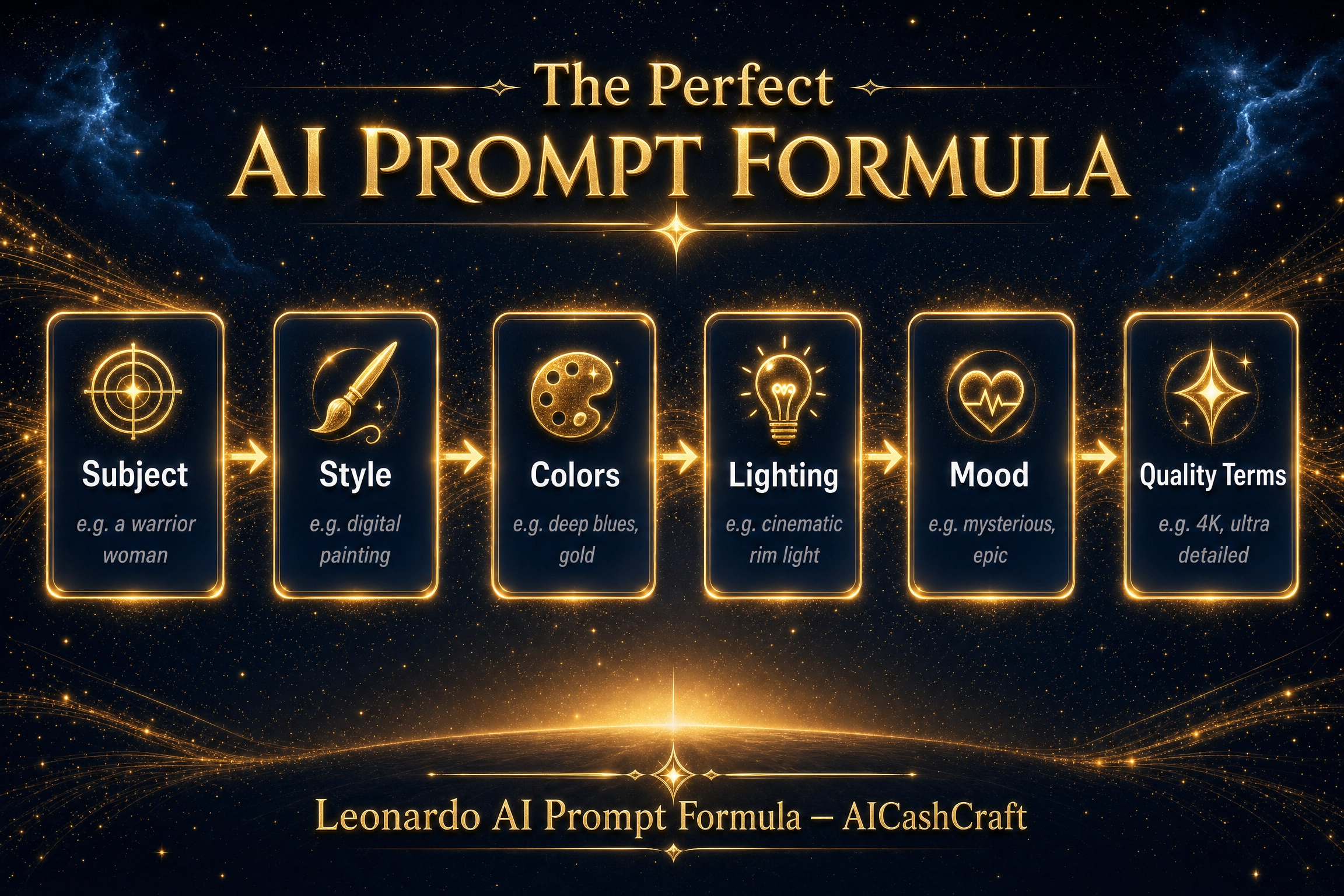
One of the most important things to learn when figuring out how to use Leonardo AI for beginners is prompt writing. The single biggest factor in image quality is prompt quality — a vague prompt produces average results, while a detailed specific prompt consistently produces professional-quality images. Here is the exact formula beginners should use:
Weak Prompts vs Strong Prompts
These prompts give Leonardo AI almost no information to work with. The results will be generic, inconsistent, and often misaligned with what you actually wanted. Vague prompts waste your daily credits.
This prompt tells Leonardo AI the subject, setting, lighting, style, background, and quality level. The result will be significantly more professional and usable than a vague one-word prompt.
Prompt Modifiers That Always Improve Results
- Style modifiers: photorealistic, digital art, watercolor, cinematic, minimalist, illustration, anime, 3D render
- Lighting modifiers: golden hour, studio lighting, soft natural light, dramatic shadows, neon glow, backlit
- Quality modifiers: ultra-detailed, high resolution, sharp focus, professional quality, 8K, masterpiece
- Composition: close-up portrait, wide angle, bird’s eye view, symmetrical composition, rule of thirds
- Mood: serene, dramatic, energetic, mysterious, warm and inviting, professional and clean
🤖 How to Use Leonardo AI for Beginners — Choosing the Right Model
Another key part of learning how to use Leonardo AI for beginners is choosing the right AI model. Leonardo AI offers multiple models — each optimized for different image styles and use cases. Choosing the right model is just as important as writing a good prompt. Here are the key models beginners should know:
Phoenix is Leonardo AI’s flagship model and the best starting point for all beginners. It produces excellent results across every image type — realistic photos, digital art, illustrations, and concept images. When in doubt, start with Phoenix and switch to a specialized model only if you need a specific style.
💡 Recommended: Use Phoenix for your first 2 weeks on Leonardo AI. Get comfortable with the interface and prompting before experimenting with other models.PhotoReal v2 is optimized for photorealistic output — ideal for generating images that look like real photographs. Use it for profile photos, product mockups, lifestyle images, and any content where you want the image to look like it was taken with a camera rather than generated by AI.
Kino XL produces dramatic, cinematic-quality images with strong lighting and composition — the style you see in movie posters and high-production YouTube thumbnails. Use it when you want images that feel large, dramatic, and visually commanding.
Flux handles complex, detailed scenes with multiple elements better than most other models. Use it for architectural renders, detailed fantasy illustrations, complex product scenes, and any image that requires many precise details to look right.
Anime Pastel Dream is specifically trained for anime and manga-style illustration. If you want Japanese animation-style characters, scenes, or artwork — this model produces significantly better results than a general model with an “anime style” prompt.
💡 How to Use Leonardo AI for Beginners — 7 Tips for Better Results
The negative prompt field tells Leonardo AI what to avoid in the image. Always add: “blurry, low quality, distorted, watermark, text overlay, extra fingers, deformed hands, ugly” — this single habit dramatically improves the quality and consistency of your results from the very first generation.
Always set image count to 4 instead of 1. The credit cost is the same per image regardless — and having 4 variations to compare gives you a much better chance of getting one great result. AI image generation has natural variation, so more outputs per prompt means better selection.
When a prompt produces an image you love, copy and save the exact prompt text immediately. Build a personal library of working prompts in a simple notes app. After a few weeks, you will have a collection of proven prompts you can reuse and remix — saving significant time and credits.
Always set your aspect ratio before hitting generate — not after. Use 16:9 for YouTube thumbnails and blog banners, 1:1 for Instagram posts, 9:16 for Instagram Stories and TikTok, 4:3 for general blog images. Generating at the right ratio produces much better-composed images than resizing after.
Leonardo AI’s community gallery shows what other creators are generating — and critically, you can see the exact prompt and model used for every public image. This is one of the fastest ways to learn effective prompting. Spend 10 minutes browsing the community feed before your first session and note prompts and styles that match what you want to create.
The image-to-image feature lets you upload a reference image and generate new images in the same style. This is particularly useful for maintaining visual consistency across a blog, social media account, or client project — upload one approved image and use it as the style reference for all subsequent generations.
Longer is not always better with AI prompts. Prompts over 60–70 words often confuse the model and produce inconsistent results. Focus on the most important details — subject, style, and lighting — and keep everything concise. If your prompt is getting long, remove filler words and keep only the most impactful descriptors.
💰 5 Ways to Make Money With Leonardo AI
Leonardo AI’s free plan generates more than enough images to build real income streams. Here are the most practical ways beginners are using Leonardo AI’s free daily credits to earn money online:
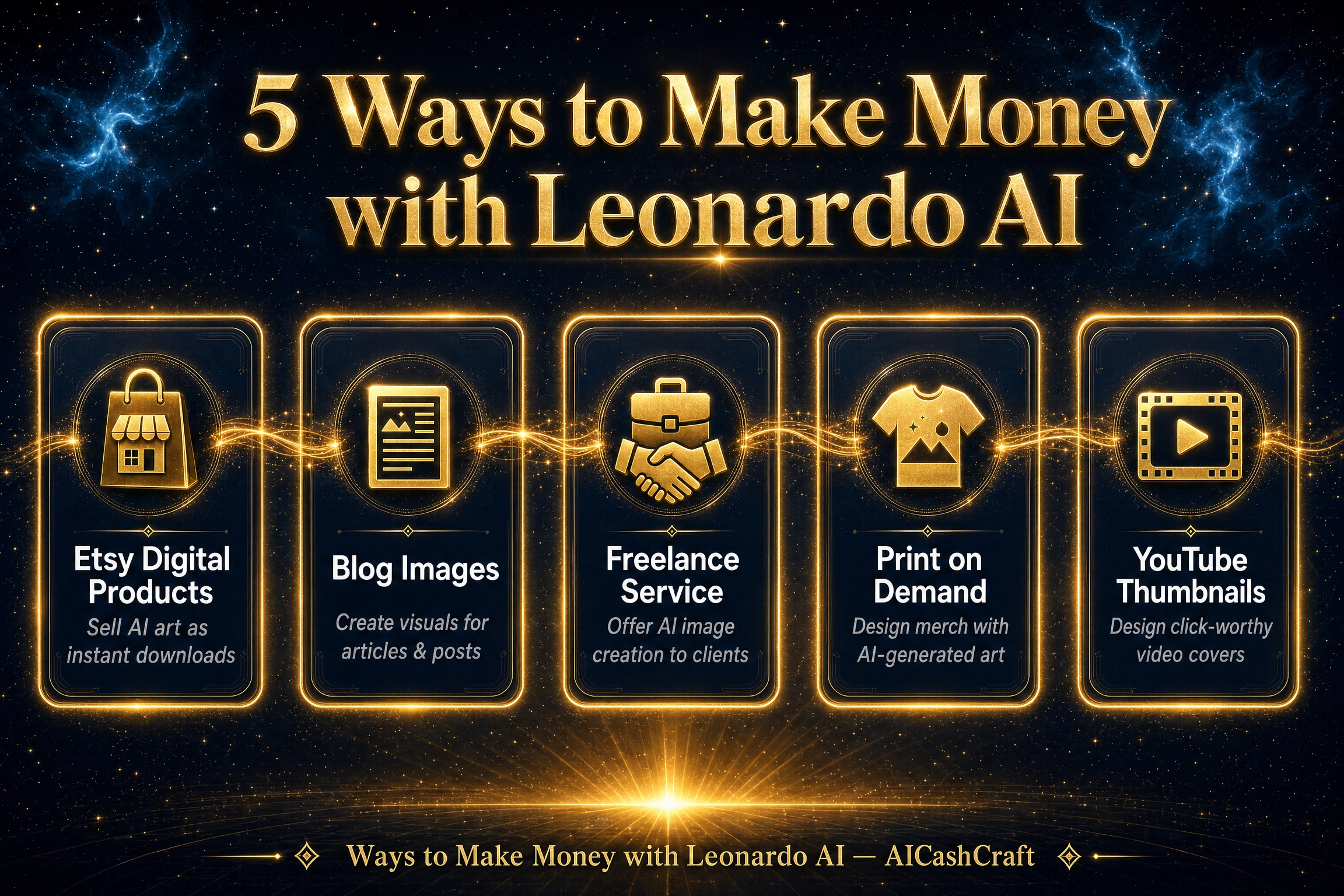
Create themed digital art packs — wall art, printable illustrations, clipart sets, and pattern collections — using Leonardo AI and sell them on Etsy as instant digital downloads. Each listing sells repeatedly with no inventory, no printing, and no shipping. A pack of 10 coordinated art prints in a specific niche — botanical, minimalist, motivational — typically sells for $5 to $25 per purchase. See our full guide on how to make money on Etsy with AI →
💡 Niche packs sell faster than generic art — focus on specific topics like “minimalist office wall art” or “boho bedroom prints” rather than broad categories.Every blog post needs a featured image — and stock photo sites offer limited options for AI and tech topics. Use Leonardo AI to generate custom, on-brand featured images for every blog post. Unique images improve time-on-page metrics, reduce bounce rates, and make your blog look significantly more professional. If you manage multiple blogs or client sites, offer this as a recurring service — 10 custom blog images per month for a flat monthly retainer.
Businesses consistently need custom images for websites, social media, email campaigns, and marketing materials — but many do not know how to use AI tools themselves. Offer AI image generation services on Fiverr or Upwork. Beginner gigs typically start at $15–50 per project for a set of custom images — as you build a portfolio and reviews, rates of $75–200 per project become achievable. See how to get started in our guide on making money with AI →
Use Leonardo AI to create original designs for t-shirts, mugs, tote bags, phone cases, and posters — then sell them through Printful, Printify, or Redbubble with zero upfront investment. These platforms handle printing, packaging, and shipping automatically when a customer places an order. Your only job is creating the designs and listing them. The key is finding niche designs with lower competition — pet breeds, specific hobbies, local references — rather than competing in oversaturated general categories.
💡 Use Leonardo AI’s Kino XL model for dramatic poster designs and PhotoReal for lifestyle product mockup backgrounds — the higher visual quality translates directly to better product listings.YouTube thumbnails directly impact video click-through rates — and many content creators know they need better thumbnails but do not have design skills. Generate cinematic background images in Leonardo AI using the Kino XL model, then add text and overlay elements in Canva. Offer a “YouTube thumbnail package” of 5–10 thumbnails per month as a recurring service. This is one of the most in-demand creative services for YouTube creators at every level — from beginners to established channels.
❓ Frequently Asked Questions — Leonardo AI for Beginners
Yes — Leonardo AI offers a genuinely free plan with 150 credits per day and no credit card required. With 4–6 credits per image, you can generate 25–37 images daily for free. Paid plans start from $12/month for higher credit limits. The free plan is more than sufficient for most beginner and intermediate use cases.
With 150 free daily credits and approximately 4–6 credits per basic image generation, you can generate roughly 25–37 images per day completely free. Credits reset automatically every 24 hours. Generating at higher quality settings (like Alchemy Refiner) uses more credits per image, so basic generation gives you the most images per credit on the free plan.
Start with the Phoenix model — it is Leonardo AI’s flagship general-purpose model and produces excellent results across all image types. Once comfortable, switch to PhotoReal v2 for photorealistic portraits and product images, Kino XL for dramatic cinematic images, or Flux for complex, detail-heavy scenes. For anime-style images, Anime Pastel Dream is the specialist choice.
Leonardo AI’s paid plans include clear commercial use rights for generated images. The free plan has more limited commercial terms — always review Leonardo AI’s current Terms of Service at leonardo.ai before using free-plan images in commercial projects. For fully confirmed commercial-safe AI images, Adobe Firefly is the clearest alternative. See our complete AI Image Tools comparison →
Leonardo AI offers a free plan with 150 daily credits, a web interface, and multiple model options with no credit card required. Midjourney requires a paid subscription starting at $10/month and operates entirely through Discord. For beginners, Leonardo AI is the better starting point due to its free plan and more intuitive web interface. Midjourney produces slightly stronger results for abstract and artistic images at its highest settings — but for most beginner content creation tasks, Leonardo AI is comparable and completely free to start.
No technical skills are required to use Leonardo AI. The interface is straightforward — type a description, click generate, download your image. The main skill to develop is prompt writing, which this guide covers in detail. Most beginners produce usable, high-quality images within their first 10 minutes on the platform. See our AI Image Tools directory for more beginner-friendly options.
📚 Related Guides
🎯 Final Thoughts — How to Use Leonardo AI for Beginners Starting Today
Now you know exactly how to use Leonardo AI for beginners — from signing up and generating your first image to writing strong prompts, choosing the right model, and earning money with your free daily credits. Leonardo AI is one of the rare free tools that genuinely delivers professional-quality results without asking for a credit card or locking core features behind a paywall.
The most important thing beginners can do is start immediately and use the credits daily. Prompt writing improves quickly with practice, and the quality difference between your first generation and your tenth is significant. Start with the Phoenix model, keep prompts specific and under 50 words, always generate 4 images at once, and use negative prompts from day one.
For more free AI tool guides, income strategies, and step-by-step tutorials, explore the AICashCraft Blog. Follow our YouTube channel and Instagram for free video guides and daily AI tips.
Get the latest AI tool guides, free tools, and income strategies from AICashCraft — completely free.
Top 10 Free AI Tools for Beginners
Download our free 13-page PDF guide covering the best free AI tools with beginner tips and step-by-step advice. No sign-up needed.
⬇️ Download Free PDF Guide