How to Use Kling AI for Beginners — 7 Easy Steps to Create AI Videos Free
How to use Kling AI for beginners — this complete step-by-step guide shows you exactly how to create stunning AI videos using text prompts and images, completely free. Kling AI is one of the most powerful free AI video generators available right now, and this guide covers everything from account setup to making money with your AI videos.
If you want to know how to use Kling AI for beginners, you are in the right place. Kling AI is a powerful AI video generation tool developed by Kuaishou Technology that allows anyone — including complete beginners — to create cinematic, high-quality videos from simple text descriptions or uploaded images. No camera, no video editing skills, and no expensive software required.
In this complete Kling AI beginner guide, you will learn exactly how Kling AI works, how to create your first AI video step by step, what the free plan includes, and how to use Kling AI to generate real income online. For more AI video tools, explore our complete AI Video Tools for Beginners directory → and our guide on Faceless YouTube Channel With AI →
🎬 What Is Kling AI — And Why Beginners Should Use It
Before diving into how to use Kling AI for beginners, it helps to understand what makes this tool different from other AI video generators. Kling AI is a text-to-video and image-to-video AI model developed by Kuaishou — one of China’s largest technology companies. It uses advanced diffusion model technology to generate realistic, high-motion videos up to 2 minutes long from simple text or image inputs.
What makes Kling AI particularly valuable for beginners is the combination of genuinely impressive video quality, a generous free plan, and an interface simple enough for anyone to use from day one. Unlike many competing AI video tools that require paid subscriptions from the start, Kling AI’s free plan provides daily credits that allow beginners to practice and produce real content without any upfront cost.
Why Kling AI Stands Out Among AI Video Tools
- High motion quality — videos have realistic movement, not just sliding images
- Long video duration — up to 2 minutes per clip, longer than most competitors
- Text to video — describe any scene in text and Kling AI generates it
- Image to video — upload any image and Kling AI animates it realistically
- Free plan available — daily credits allow beginners to start without paying
- Multiple aspect ratios — 16:9 for YouTube, 9:16 for TikTok and Reels, 1:1 for Instagram
🚀 How to Use Kling AI for Beginners — 7 Easy Steps
Here is the complete step-by-step process for how to use Kling AI for beginners — from creating your account to generating your first AI video:
Step 1 — Create Your Free Kling AI Account
Go to klingai.com and click Sign Up. You can register with your Google account, Apple ID, or email address — no credit card required. Once registered, you receive free daily credits that refresh every 24 hours. These credits allow you to generate AI videos, images, and use other Kling AI features completely free. The free plan is generous enough for beginners to practice daily and produce real content.
💡 Sign up with Google for the fastest registration — takes under 60 seconds and immediately gives you access to all free features.Step 2 — Understand the Kling AI Dashboard
The Kling AI dashboard has three main sections beginners need to know. The AI Video section is where you create videos from text or images. The AI Image section generates still images. The Credits counter shows your remaining free daily credits. Inside the AI Video section, you will find two main modes: Text to Video (type a description and generate a video) and Image to Video (upload an image and animate it). Start with Text to Video for your first attempt — it requires no image and produces impressive results immediately.
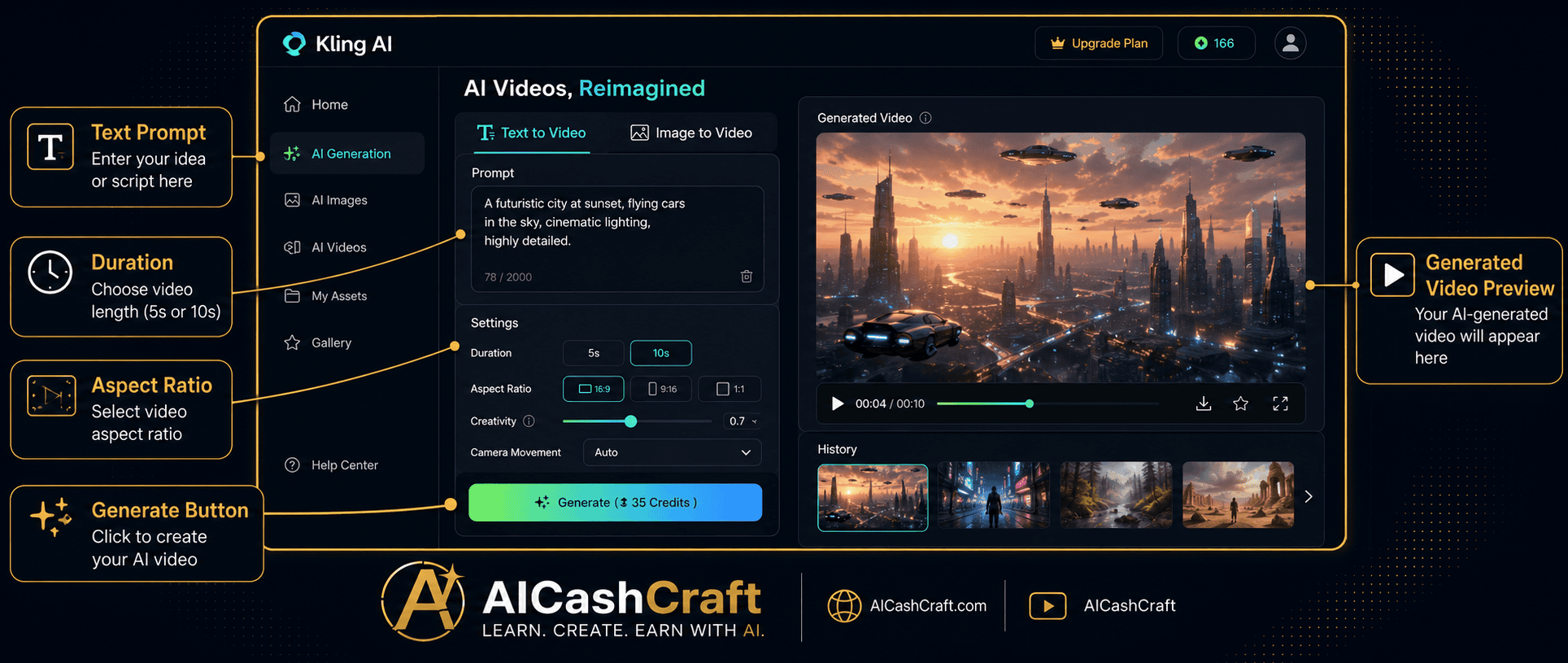
Step 3 — Write Your First Text to Video Prompt
The quality of your Kling AI video depends almost entirely on the quality of your text prompt. A good prompt includes the subject, action, environment, camera style, and mood. Vague prompts produce generic results — specific, detailed prompts produce cinematic, impressive videos. The prompt box accepts up to 2,500 characters, so there is plenty of room to be descriptive.
Kling AI Text Prompt Formula for Beginners:
[Subject] + [Action] + [Environment] + [Camera Style] + [Mood/Lighting]
Example Prompts for Beginners:
✅ Good prompt: “A golden retriever puppy running through a field of sunflowers at sunset, slow motion, cinematic camera pan, warm golden light, shallow depth of field, high quality”
❌ Bad prompt: “A dog in a field”
💡 Use our free ChatGPT Prompt Generator → to build better Kling AI video prompts automatically.Step 4 — Choose Your Video Settings
Before generating your video, configure these three settings for best results:
Duration:
- 5 seconds — Uses fewer credits, good for social media clips and practice
- 10 seconds — Standard length, best balance of quality and credit cost
- Up to 2 minutes — Available on paid plans for longer content
Aspect Ratio:
- 16:9 — YouTube, landscape videos, presentations
- 9:16 — TikTok, Instagram Reels, YouTube Shorts
- 1:1 — Instagram feed posts, square format
Quality Mode:
- Standard — Faster generation, uses fewer credits
- Professional — Higher quality, uses more credits
Step 5 — Generate and Download Your AI Video
Click the Generate button — Kling AI typically takes 1-3 minutes to create your video depending on length and quality settings. Once generated, the video appears in your gallery. Watch it to evaluate quality — if it does not match your vision, refine your prompt and regenerate. Successful videos can be downloaded directly to your device in MP4 format, ready to use for YouTube, social media, client projects, or any other purpose.
💡 Generate 2-3 variations of each prompt with slight differences to compare — the free daily credits refresh every 24 hours, so practice consistently builds skill quickly.Step 6 — Use Image to Video for Even Better Results
The Kling AI Image to Video feature is one of the most powerful tools for beginners — it takes any still image you upload and turns it into a realistic animated video. This is particularly useful for animating product photos, portraits, landscape photography, AI-generated images, or any visual you want to bring to life with realistic motion. Upload your image, write a brief motion description (example: “gentle breeze moving through the trees, slow camera pan left”), set your duration and aspect ratio, and generate.
💡 Combine with Leonardo AI → — generate a high-quality image in Leonardo AI, then animate it in Kling AI for cinematic results.Step 7 — Edit and Publish Your AI Video
Kling AI generates individual video clips — for longer content, combine multiple clips in a free video editor. CapCut (free) is the best option for beginners — it allows you to join multiple Kling AI clips, add music, text overlays, transitions, and export in any resolution. For voiceovers, use ElevenLabs (free) to generate natural-sounding AI narration. The complete workflow: Kling AI for video clips → CapCut for editing → ElevenLabs for voiceover → publish to YouTube, TikTok, or Instagram.
💡 See our complete guide on Faceless YouTube Channel With AI → for the full editing and publishing workflow.💰 Kling AI Free Plan — What Beginners Get for Free
One of the most important things to understand about how to use Kling AI for beginners is what the free plan actually includes. Many beginners assume AI video tools require paid subscriptions from the start — Kling AI is genuinely different.
| Feature | Free Plan | Paid Plan |
|---|---|---|
| Daily Credits | ✅ Free daily credits | More credits |
| Text to Video | ✅ Included | ✅ Included |
| Image to Video | ✅ Included | ✅ Included |
| Video Duration | Up to 10 seconds | Up to 2 minutes |
| Video Quality | ✅ Standard quality | Professional quality |
| Download | ✅ MP4 download | ✅ MP4 download |
| Watermark | Kling AI watermark | No watermark |
✍️ Best Kling AI Prompt Tips for Beginners
The single most important skill in how to use Kling AI for beginners is writing effective prompts. Here are the most practical prompt tips that produce consistently better results:
Kling AI responds well to camera direction keywords — including them dramatically improves video quality and cinematic feel. Use terms like: slow zoom in, pan left, pan right, drone shot, tracking shot, dolly zoom, aerial view, close-up, wide angle. Example: “A bustling Tokyo street at night, neon signs reflecting on wet pavement, slow cinematic pan right, shallow depth of field, high quality.”
Lighting keywords transform ordinary Kling AI outputs into cinematic-quality videos. Always include lighting descriptions: golden hour light, blue hour, dramatic shadows, soft diffused light, candlelight, neon glow, misty atmosphere, backlit, volumetric light. Example: “A lone lighthouse on a rocky cliff during a stormy night, dramatic lightning illuminating the waves, cinematic wide angle, high contrast.”
End every Kling AI prompt with quality enhancement keywords — these signal to the model to prioritize detail and realism. Use: high quality, photorealistic, 4K, cinematic, ultra detailed, masterpiece, professional grade, film quality. These keywords consistently improve output quality at no additional credit cost.
Kling AI supports negative prompts — descriptions of what you do NOT want in your video. Common negative prompts for beginners: blurry, distorted faces, low quality, pixelated, watermark, text, duplicate, ugly, deformed. Adding a negative prompt reduces the frequency of AI artifacts and improves overall output consistency — especially important for videos featuring people or animals.
💰 How to Make Money With Kling AI for Beginners
Understanding how to use Kling AI for beginners opens up several practical income opportunities. Here are the most realistic ways beginners use Kling AI to generate online income:
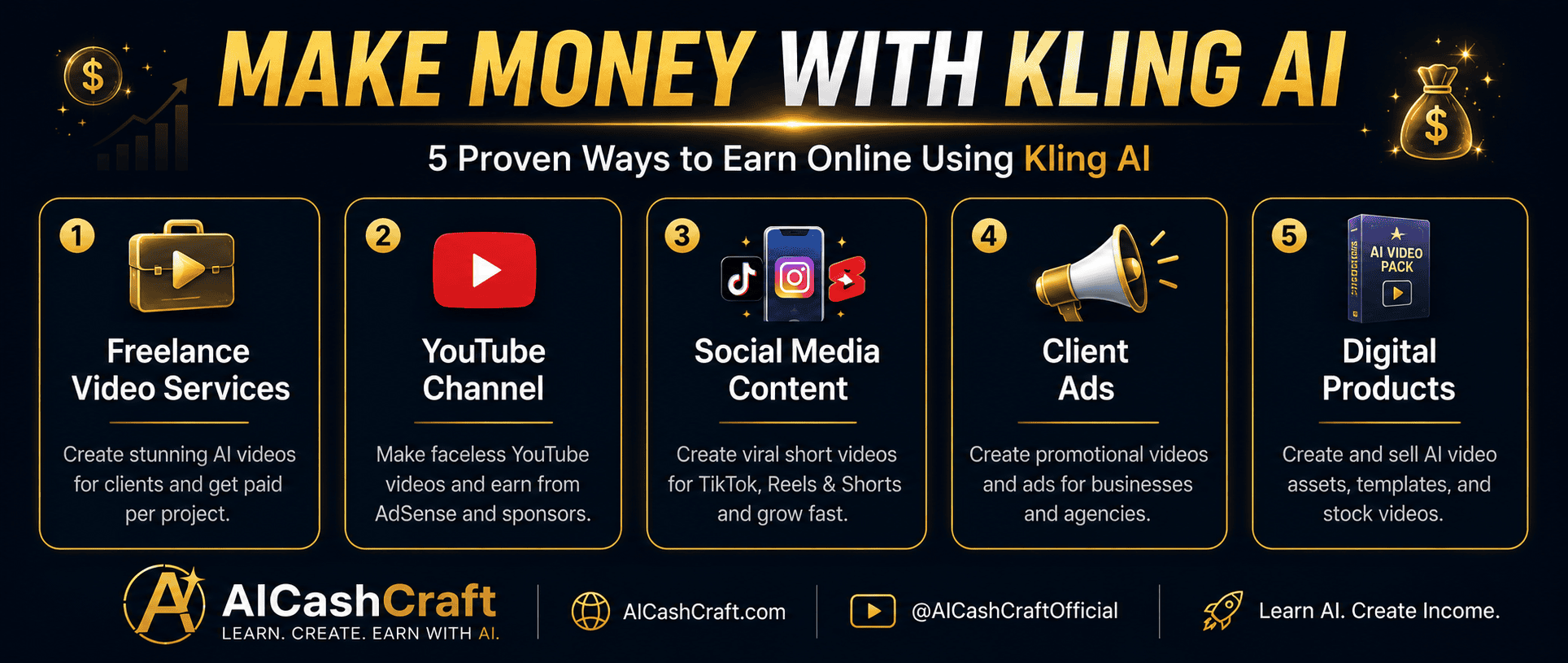
Use Kling AI to offer freelance video creation services on Fiverr — product showcase videos, explainer clips, social media video content, and cinematic b-roll footage for clients. AI video services are in high demand and most businesses cannot create them without expensive equipment or skills. With Kling AI, you can produce professional-quality 10-30 second video clips in minutes. Charge $15-50 per clip as a beginner and scale up as your portfolio grows. See our AI Tools for Fiverr guide →
💡 Create a Fiverr gig showing 5-10 sample Kling AI videos across different styles — nature, product, urban, cinematic. Variety attracts more buyers.Kling AI is one of the best tools for building a faceless YouTube channel — no camera, no face, no recording equipment required. Use ChatGPT for scripts, ElevenLabs for voiceover, Kling AI for cinematic b-roll footage, and CapCut to assemble everything. Popular niches that work well with AI video: nature documentaries, space and science, historical storytelling, meditation and relaxation, and travel content. Once a channel reaches 1,000 subscribers and 4,000 watch hours, YouTube ad revenue begins — true passive income. See our complete Faceless YouTube Channel guide →
Small businesses need consistent social media video content — Instagram Reels, TikToks, and YouTube Shorts — but most lack the time, equipment, or skills to produce it. Offer a monthly social media video package using Kling AI: 8-12 short videos per month for a flat retainer fee of $150-400. Use Kling AI for cinematic clips, CapCut for editing and captions, and ChatGPT for captions and hashtags. With AI tools, you can manage 5-8 clients simultaneously. See our Passive Income With AI guide →
Generate packs of Kling AI video clips in specific styles — nature backgrounds, abstract motion, urban footage, seasonal themes — and sell them as digital download packs on Gumroad or Etsy. Each video pack can sell repeatedly with no additional work after the initial creation. Price packs at $5-25 depending on quantity and quality. This is true passive income with AI video — create once, sell indefinitely. See our Passive Income With AI guide → for the complete digital products workflow.
❓ Frequently Asked Questions — How to Use Kling AI for Beginners
Yes — Kling AI has a free plan that includes daily credits refreshed every 24 hours. The free plan allows beginners to generate text-to-video and image-to-video content at standard quality with videos up to 10 seconds long. Free plan videos include a Kling AI watermark. Paid plans remove the watermark and provide more daily credits, longer video duration, and professional quality. Sign up free at klingai.com — no credit card required.
Kling AI is consistently ranked among the top AI video generators for realistic motion quality and cinematic output. Compared to Runway ML, Pika Labs, and other competitors, Kling AI produces more natural movement and higher detail in generated videos — particularly for nature scenes, landscapes, and product footage. For beginners, Kling AI offers the best quality-to-free-plan ratio available. See our Best AI Video Tools comparison →
Standard quality 5-second videos typically generate in 1-2 minutes. Standard quality 10-second videos take 2-4 minutes. Professional quality videos and longer durations on paid plans take proportionally longer. Generation time also depends on server load — during peak hours, wait times may be slightly longer. Most Kling AI for beginners videos are ready within 3 minutes of clicking Generate.
Kling AI’s terms of service allow commercial use of generated videos on paid plans. For the free plan, commercial use restrictions may apply — always review the current terms at klingai.com before using free plan videos for client work or monetized content. For professional client projects and monetized YouTube channels, a paid Kling AI subscription removes these limitations and the watermark. Use our free AI Income Calculator → to estimate when the paid plan becomes worthwhile.
The best starting prompt for Kling AI beginners is a nature scene with camera movement: “A peaceful mountain lake at sunrise, morning mist rising from the water, slow cinematic pan right, golden light reflecting on the surface, birds flying in the distance, high quality, photorealistic.” Nature scenes consistently produce impressive results and require no complex subject generation — perfect for learning the tool before attempting more complex prompts.
Midjourney and Leonardo AI are image generators — they produce still images. Kling AI is a video generator — it produces moving video clips. These tools complement each other rather than compete: use Leonardo AI to generate a high-quality still image, then upload that image to Kling AI’s Image to Video feature to animate it. See our guide on How to Use Leonardo AI for Beginners → and How to Use Midjourney for Beginners →
📚 Related Guides
🎯 Final Thoughts — Start Using Kling AI Today
Now you know exactly how to use Kling AI for beginners — from creating your free account and writing effective prompts to generating your first AI video and using Kling AI to earn real income online. The 7-step process in this guide works for any video type, any niche, and any experience level — and the free plan gives you everything needed to start today without spending anything.
The most important step is your first one — sign up at klingai.com, write your first text prompt, and generate your first AI video. The learning curve is shorter than you expect, and within a few days of consistent practice, you will be producing cinematic-quality AI videos that would have required professional equipment and editing skills just a few years ago.
For more AI video guides and income strategies, explore the AICashCraft Blog. Follow our YouTube channel and Instagram for free video guides and daily AI tips.
Get the latest AI video guides, free tools, and income strategies from AICashCraft — completely free.
Top 10 Free AI Tools for Beginners
Download our free 13-page PDF guide covering the best free AI tools with beginner tips and step-by-step advice. No sign-up needed.
⬇️ Download Free PDF Guide